
The 20-Minute Setup That Buys You Years of Peace
Three layers. One evening. No tech degree required.
One layer of protection is never enough — kids are resourceful.
- Families using layered controls report less daily conflict around devices and fewer surprise encounters with harmful content.
- The move: run built-in controls and third-party filtering together so each one covers the other's blind spots.
Here's something nobody tells you when you hand a kid their first device: the default settings are designed for adults. Out of the box, that shiny new tablet has zero guardrails. Every app in the store, every corner of the internet, every midnight scrolling session — all wide open.
And here's the part that actually matters: fixing this takes about twenty minutes per device. Not a weekend project. Not a certification course. Twenty minutes of tapping through settings while your coffee is still warm.
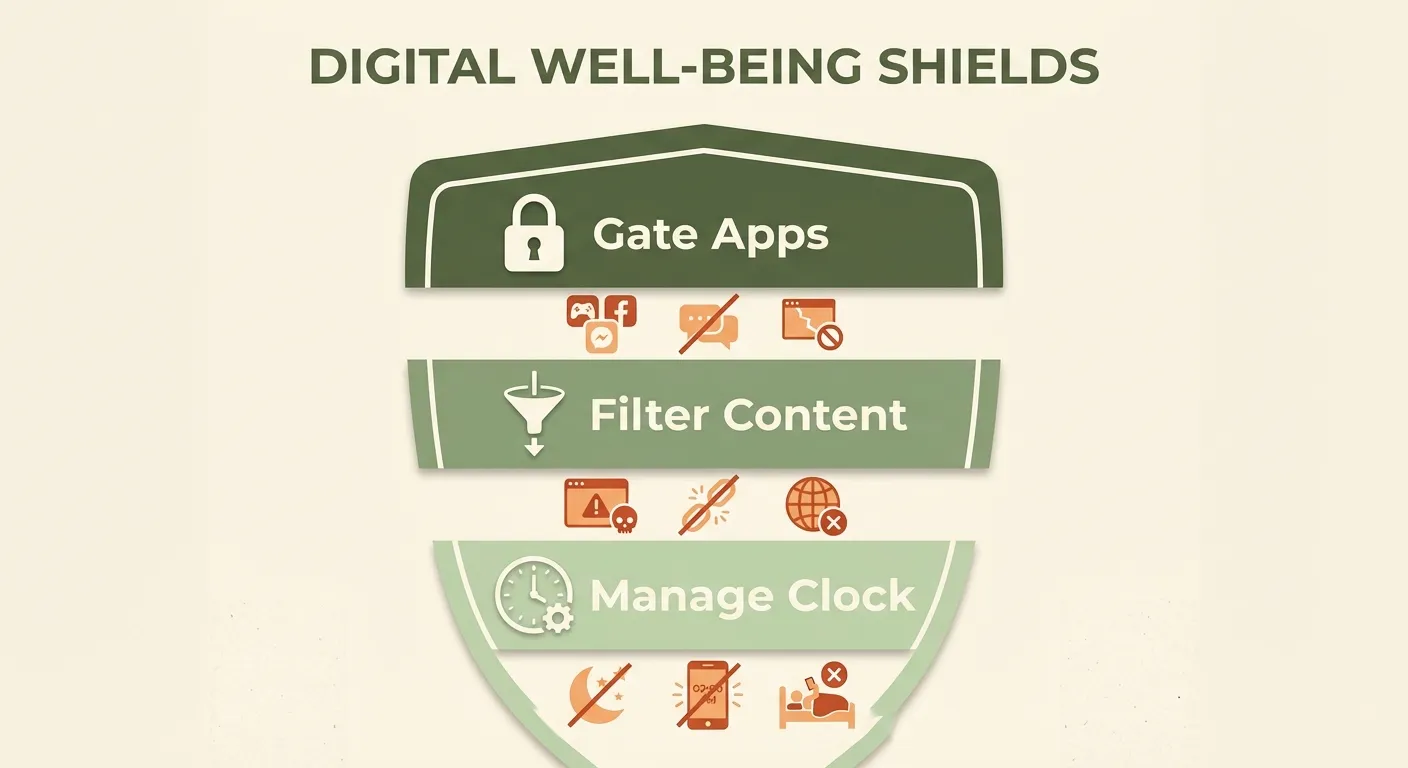
Three Layers, Zero Gaps
The system is dead simple. Each layer catches what the others miss, so even if one gets bypassed, the other two still hold. Think seatbelt plus airbag — redundancy is the entire point.
That's it. Three settings categories. Every device your child uses gets these three layers, and you've closed about 95% of the risk surface before they even turn the thing on.
Your job is to install the locks before someone walks through.
The Actual Setup — Device in Hand
Grab the device, grab your coffee. Here's your checklist. Do this before handing it over.
Phone or Tablet
Log in with your Apple ID or Google account. You're the admin. Create a child profile linked to your family group.
Require your approval for every download. Set a passcode they don't know. This also blocks the reinstall-to-reset-settings trick.
Age-appropriate ratings. Enable built-in messaging safety features (both iOS and Android flag sensitive images now).
Downtime for school hours and bedtime. Daily caps on recreational apps. Keep essentials (calls, maps) always available.
Category-based content blocking. Manage from your phone. Duplicate your key rules in both systems for redundancy.
Laptop or Desktop
This alone prevents them from changing system settings or installing software without you.
macOS and Windows both have them in system settings. Content restrictions, downtime, app limits — set under the child's account.
Especially important on laptops — browser-based access is harder to restrict with built-in tools alone.
If they can hop on an unrestricted adult device, every control on theirs becomes meaningless.
Built-In vs. Third-Party: Use Both
This isn't an either/or question. They cover different ground.
Built-In Only
- Free, already on the device
- Good for app limits and downtime
- Website filtering is one-site-at-a-time
- Setup menus can be confusing
- Limited remote management
Built-In + Third-Party
- Category-wide content blocking
- Manage everything from your phone
- Harder for kids to work around
- Redundancy = if one fails, the other holds
- Database updates automatically
Reasonable Screen Time Starting Points
No magic number exists for every kid. But research consistently points in the same direction: less recreational screen time correlates with better sleep, mood, and focus. Here are starting points to customize.
They Will Try to Get Around It
Don't take it personally. Boundary-testing is developmentally normal. Your job isn't to prevent all attempts — it's to make workarounds harder than just following the rules.
The Reinstall Trick
Delete app, reinstall it — settings wiped clean.
Fix: Lock app installs. Can't reinstall without your passcode.
Borrowing a Friend's Device
Your controls don't follow them to someone else's phone.
Fix: Explain the WHY. Kids who get the reasoning circumvent less.
Changing System Settings
Adjusting clock, location, or account type to disable limits.
Fix: Passcode on settings + admin-only access + duplicate rules in both systems.
Sneaking Devices at Night
Software downtime is only half the solution.
Fix: Combine software downtime with physical device collection at bedtime.
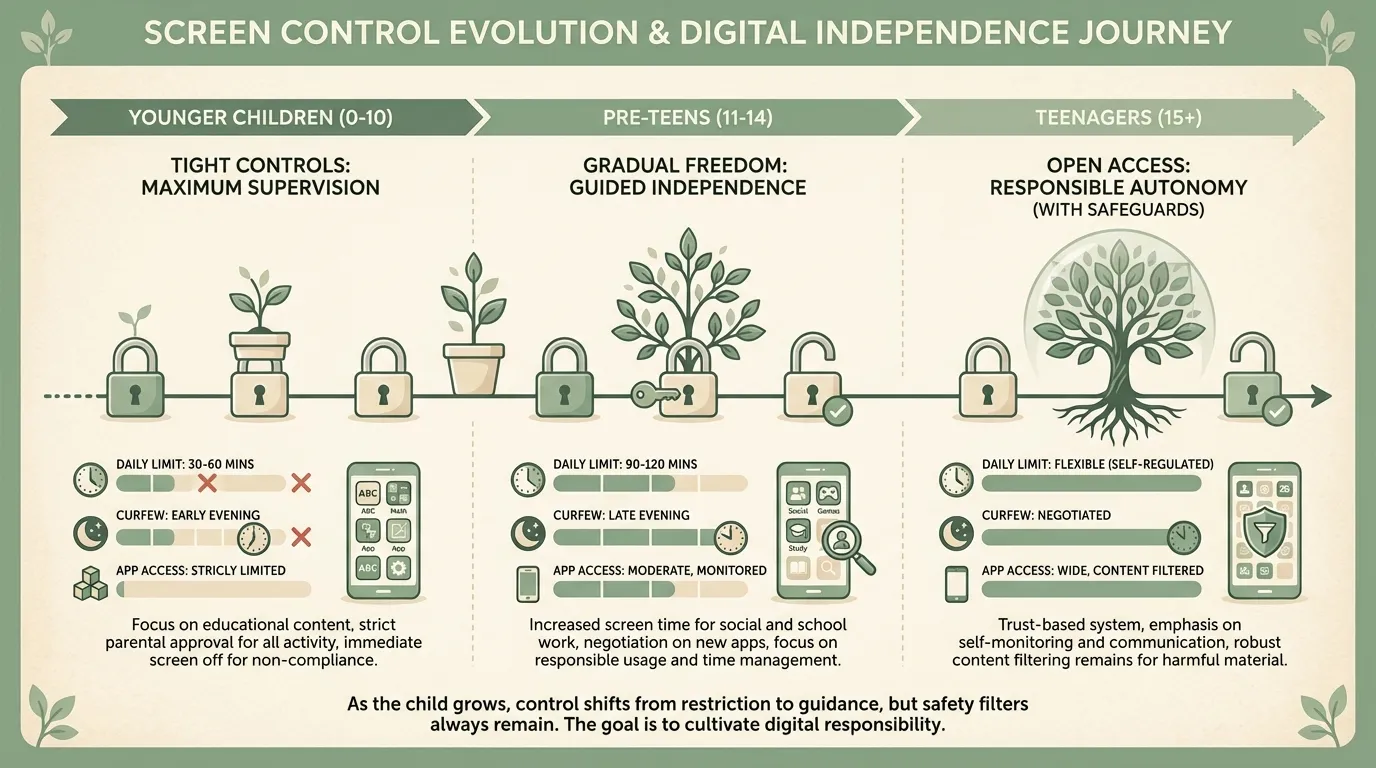
The Long Game: Start Tight, Loosen Gradually
It's far easier to grant more freedom as your child demonstrates responsibility than to claw back privileges they already had. Begin with strong controls and let good behavior earn expanded access.
Get on the Same Page
The parent who cares most about limits often isn't the one most comfortable with the technology. Close the gap:
Co-Parent Sync
Walk through the setup side by side. Both parents should understand what's in place.
One parent owns the day-to-day: checking settings, handling access requests, updating filters.
Review what's working, what the kid is requesting, and whether adjustments make sense for their age and behavior.
Twenty Minutes. Three Layers. Years of Peace.
Gate the apps. Filter the content. Manage the clock. You don't need to be a tech expert — you just need one evening with the device before your kid gets their hands on it.